12 Free Websites to Shrink and Convert Any File
Big images, huge PDFs, the wrong file format: 12 free websites that shrink and convert almost any file, with the free limits and privacy rules of each one.
Big images slow down your website. Huge PDFs bounce back from email. And the wrong file format stops you from uploading at all.
Here are 12 free websites that shrink and convert almost any file. For each one you’ll see the free limits and what happens to your files after you upload them.
At a glance
| # | Tool | Best for | Keeps your files |
|---|---|---|---|
| 1 | Squoosh | Images | Never uploaded |
| 2 | TinyPNG | Batches of images | Up to 48 hours |
| 3 | SVGOMG | SVG logos and icons | Runs in your browser |
| 4 | iLovePDF | PDFs | Up to 2 hours |
| 5 | Smallpdf | Quick PDF compression | 1 hour |
| 6 | PDF24 Tools | All-round PDF tools | A short time |
| 7 | CloudConvert | 200+ formats | Up to 24 hours |
| 8 | Convertio | 300+ formats | 24 hours |
| 9 | FreeConvert | Convert and compress | 8 hours |
| 10 | Ezgif | GIFs | Local option on some tools |
| 11 | Favicon.io | Favicons | Runs in your browser |
| 12 | RealFaviconGenerator | Testing favicons | — |
Images
1. Squoosh
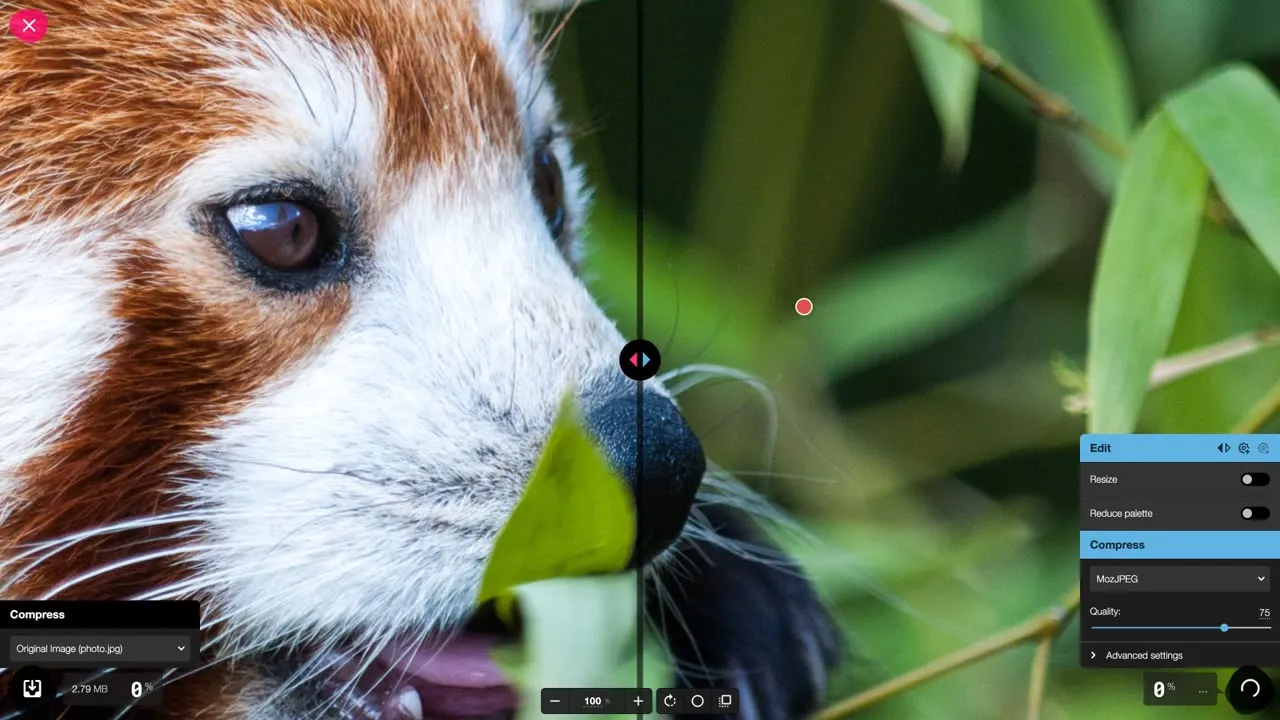
Squoosh runs in your browser, and its project page says it doesn’t send your image to a server. Open a photo and drag the slider to compare the original with the compressed version. In the video, the file ends up about 70% smaller, and you can see exactly what you lose.
Link: squoosh.app
2. TinyPNG
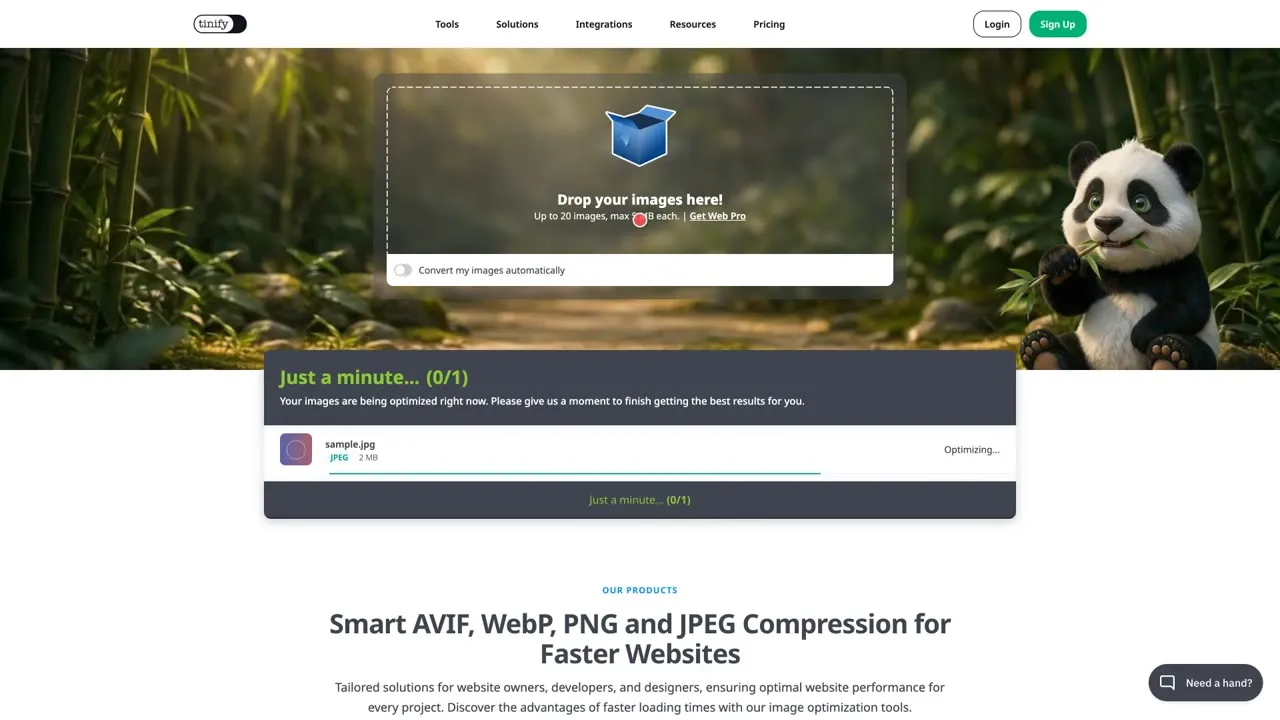
Drop in up to 20 images at once, each up to 5 MB, in formats like WebP, JPEG and PNG. It shows how much each image shrank, about 45% in the video. One thing to know: the site says it keeps uploaded images for up to 48 hours, then deletes them.
Link: tinypng.com
3. SVGOMG
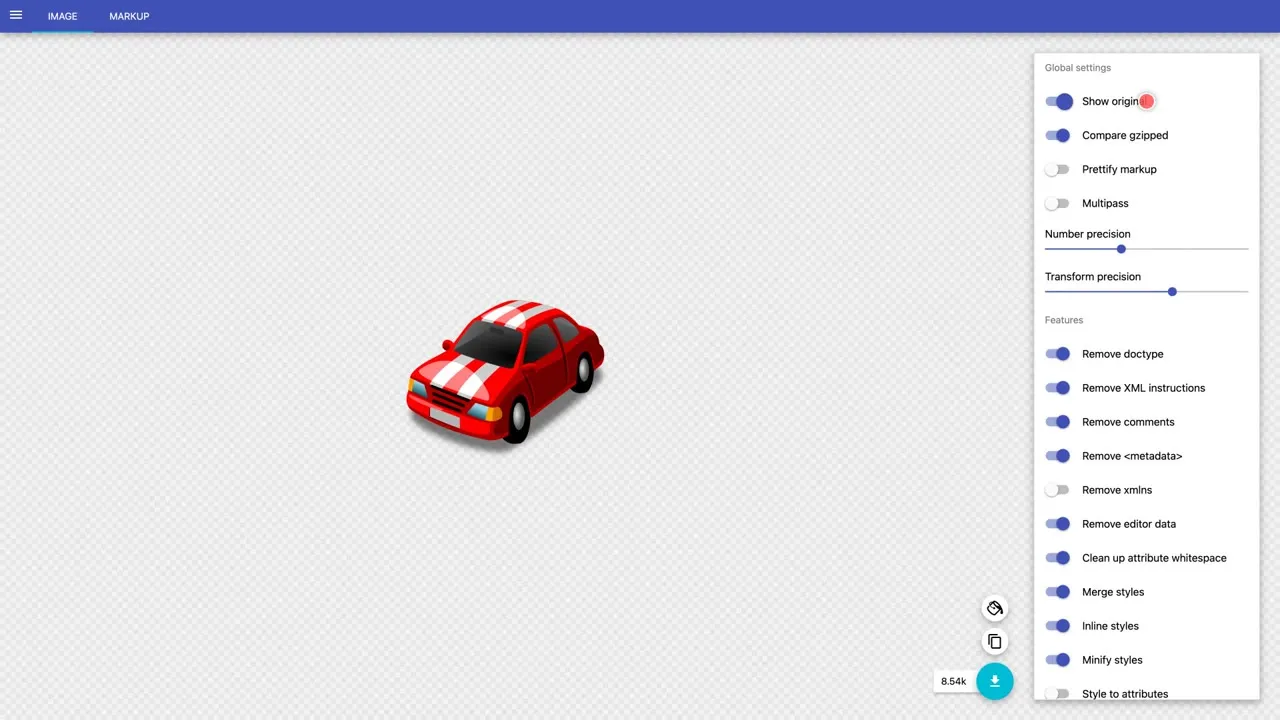
This one is for logos and icons. Open an SVG or paste the markup, then switch optimizations on and off and watch the result change. You can show the original, compare the gzipped size, and keep only the clean-up steps your file actually needs.
Link: jakearchibald.github.io/svgomg
PDFs
4. iLovePDF
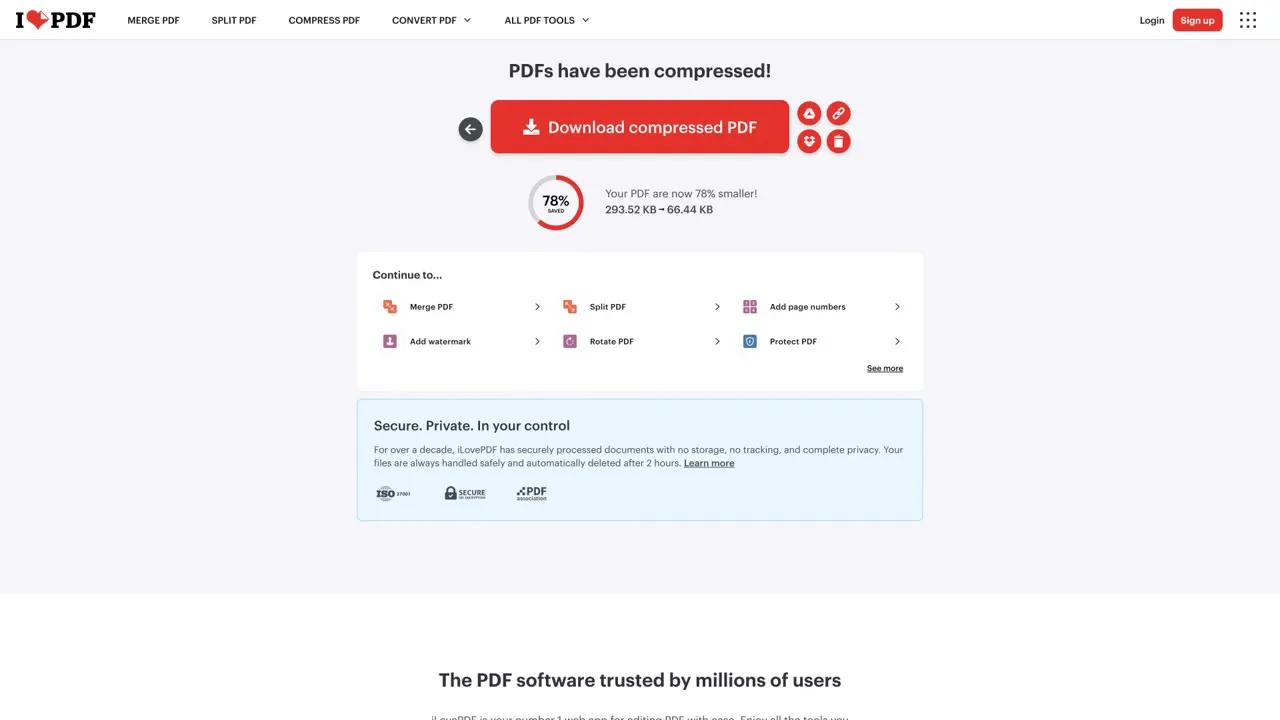
Pick the compress tool, upload your PDF, and it tells you how much smaller it became. The site says processed files are deleted automatically within 2 hours, and that your data is encrypted in transit and at rest. The free plan limits file size and batch size for each tool.
Link: ilovepdf.com/compress_pdf
5. Smallpdf
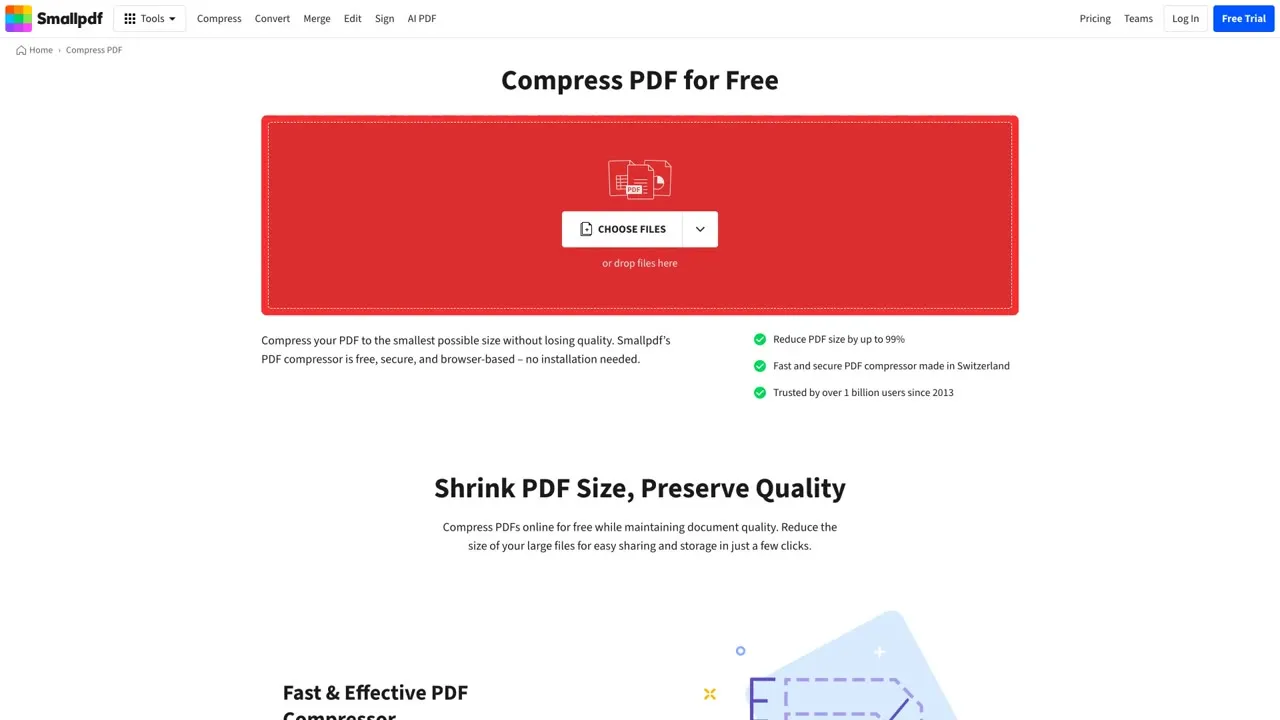
Drag in a PDF and the free basic compression runs right away, with no sign-up. Moderate and Strong compression are Pro features, and the site notes that usage limits may apply. Smallpdf says it deletes your files automatically after 1 hour.
Link: smallpdf.com/compress-pdf
6. PDF24 Tools
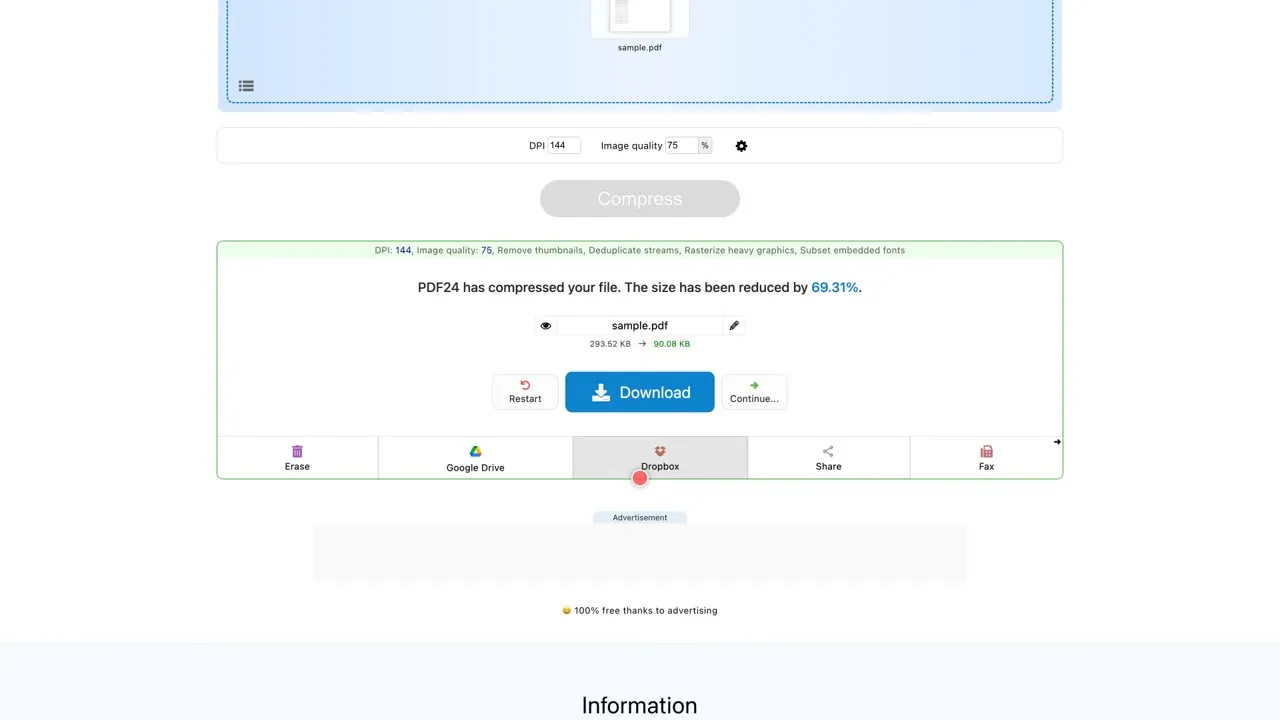
The site says all of its tools are free, with no artificial limits, and it’s supported by ads. Upload a PDF, press compress, and it shows how much the size was reduced. The online tools process files on PDF24’s servers and remove them after a short time. If you’d rather keep files on your own computer, use the Windows desktop app.
Link: tools.pdf24.org
Any format
7. CloudConvert
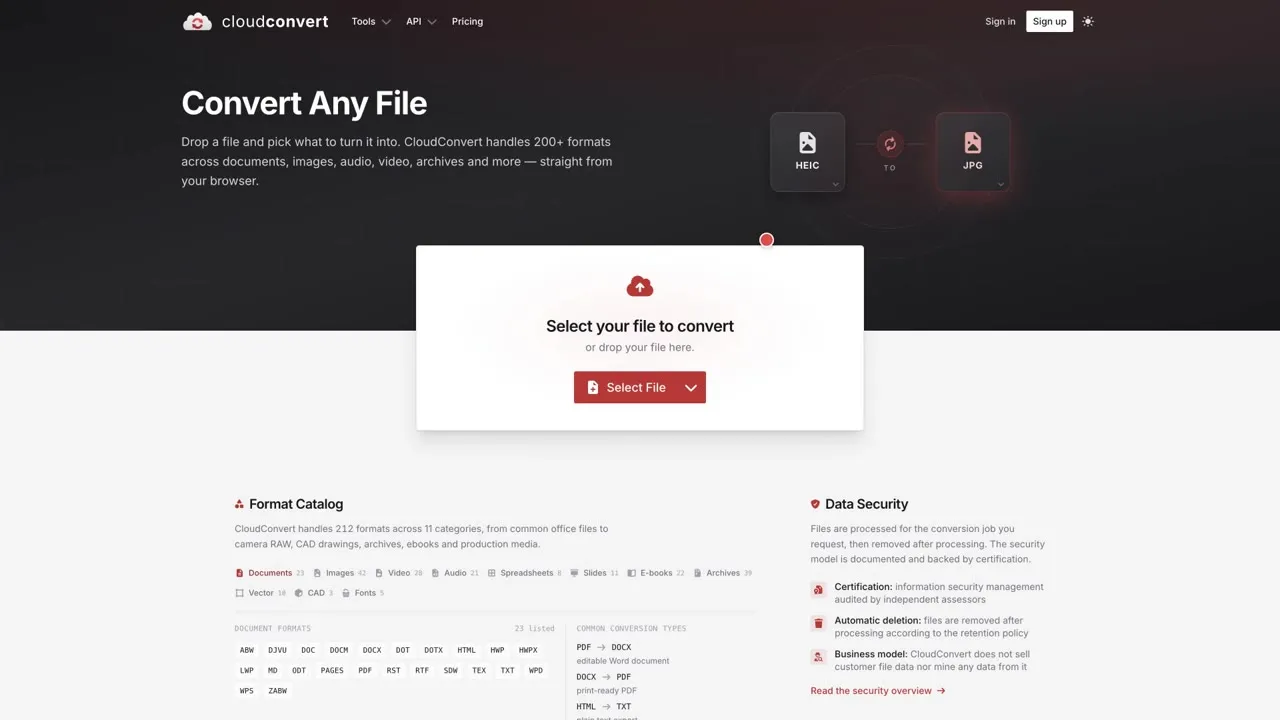
CloudConvert handles more than 200 file formats. The free plan gives you 10 conversions a day with files up to 1 GB, and it needs a free account. Uploaded files are deleted within 24 hours at the latest, or right away if you press the delete button.
Link: cloudconvert.com
8. Convertio
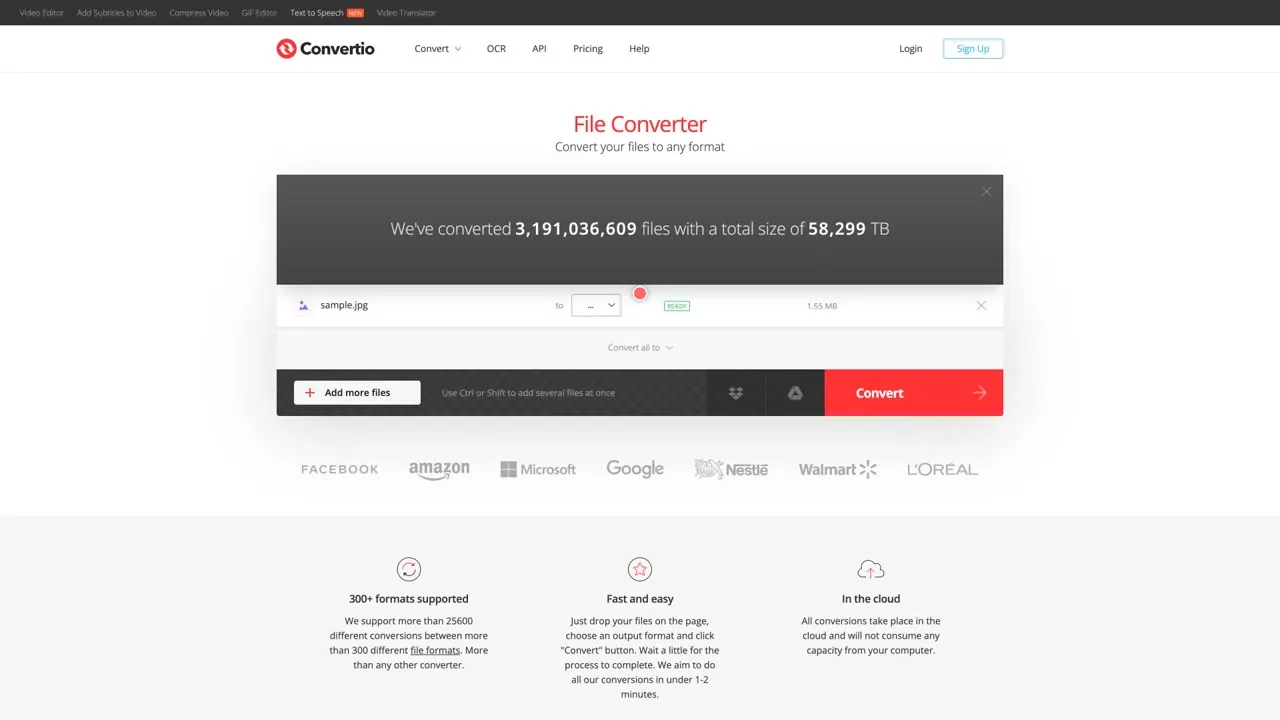
Convertio supports more than 300 formats, and its home page shows a 1 GB maximum file size. Choose your files, pick an output format and press convert. The site says uploaded files are deleted instantly and converted files after 24 hours.
Link: convertio.co
9. FreeConvert
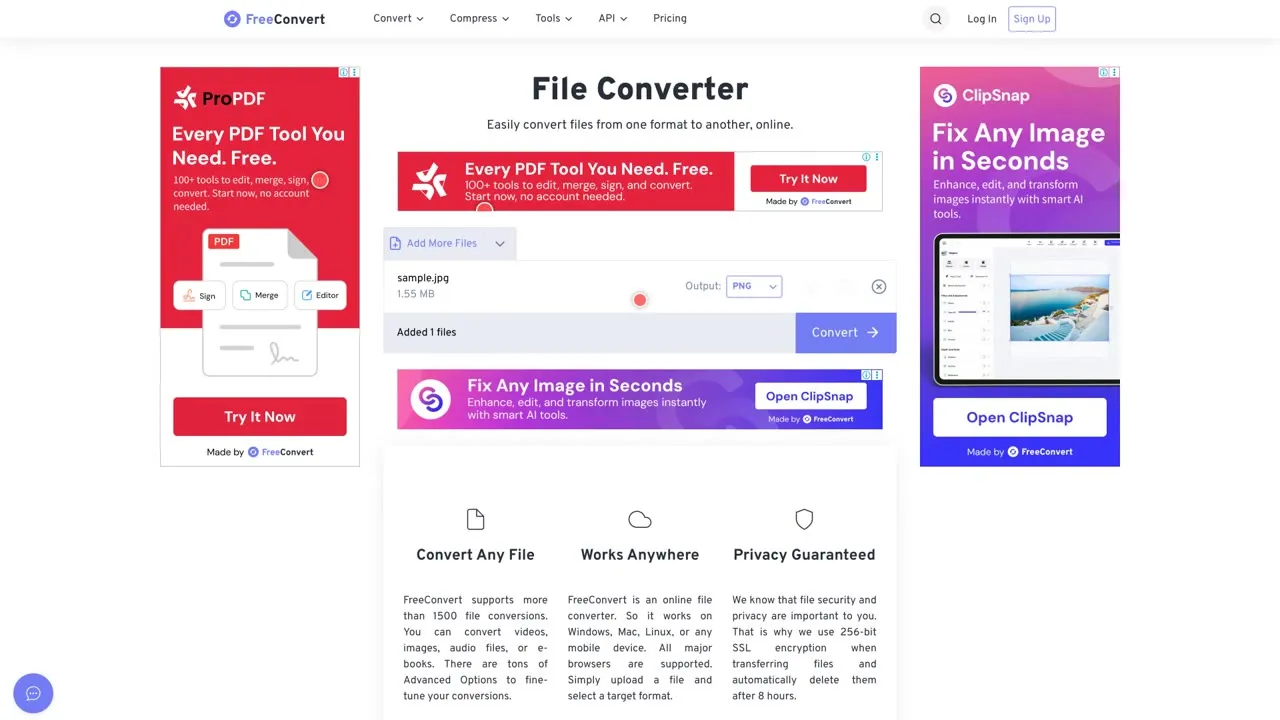
You can convert videos, images, audio and documents, and there are compressors for video, images and PDFs too. The free limit shown is 1 GB per file. Files travel with 256-bit encryption, and the site says it deletes them automatically after 8 hours.
Link: freeconvert.com
GIFs and favicons
10. Ezgif
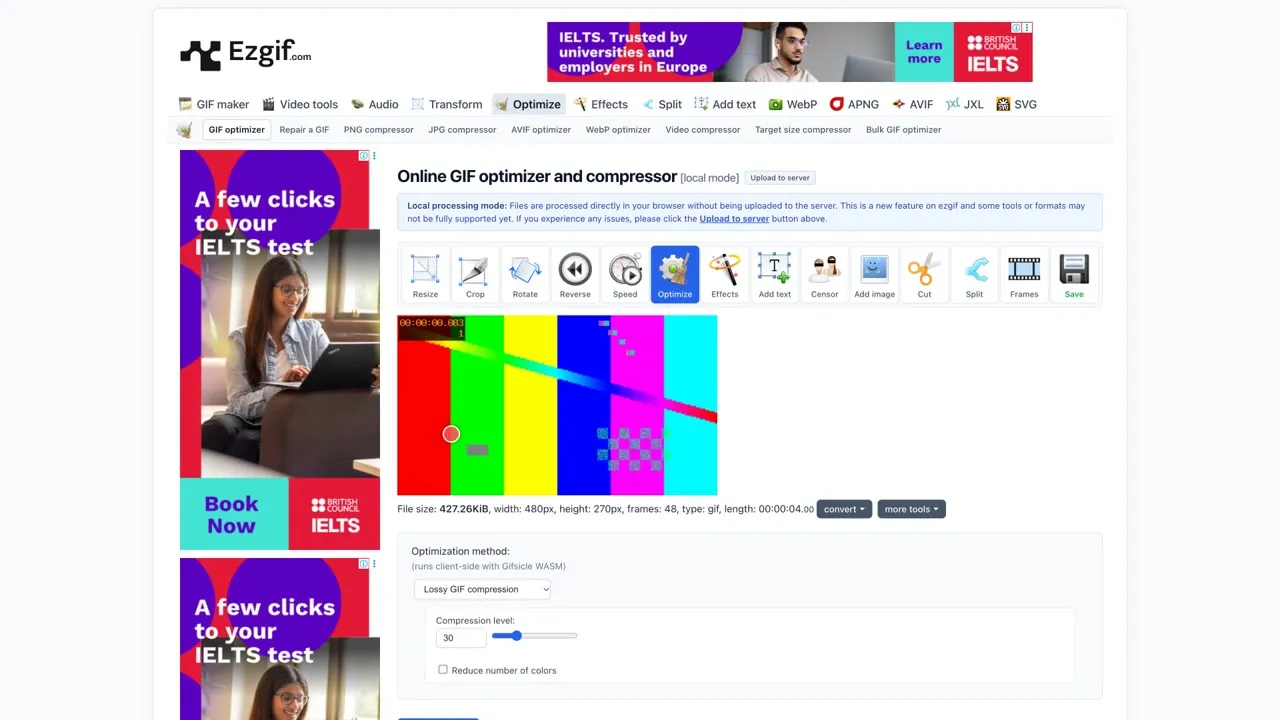
A free GIF maker and toolset. Its optimizer shrinks a heavy GIF, and you can also resize, crop and convert between formats. Some tools, like video to GIF, have a local processing switch: turn it on and your file is handled in your browser without being uploaded.
Link: ezgif.com/optimize
11. Favicon.io
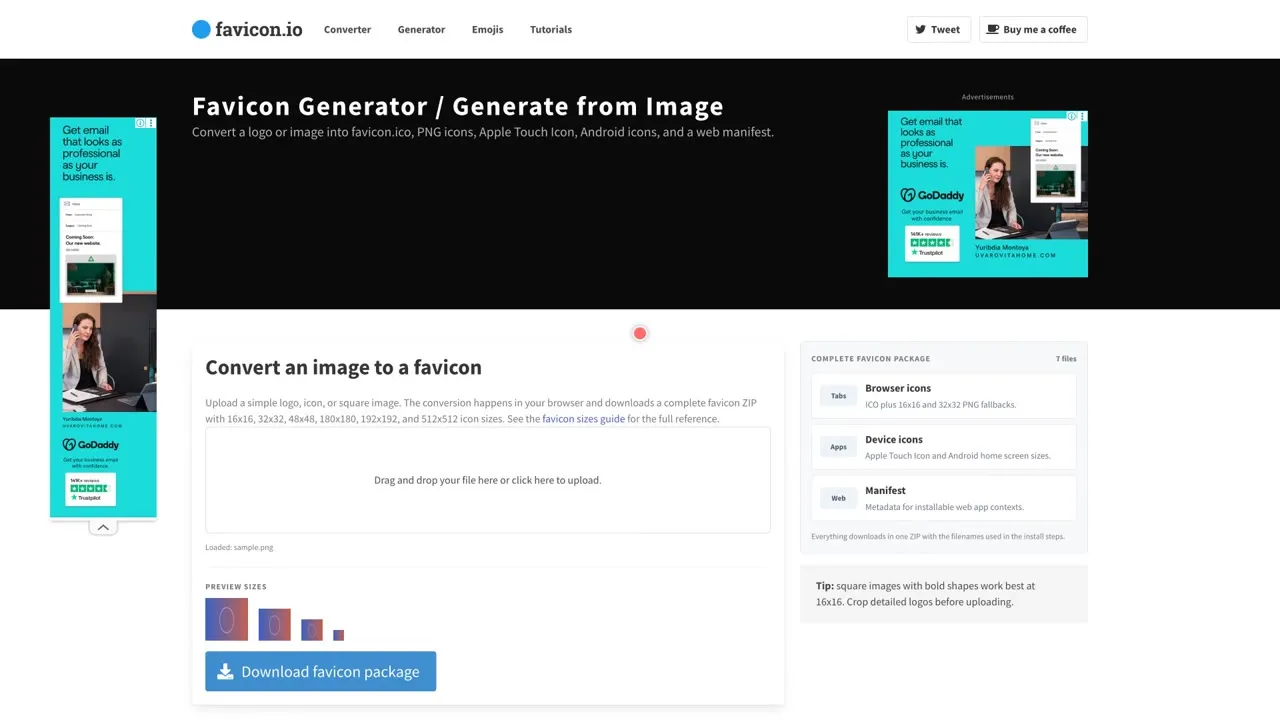
Upload a square PNG, JPG or BMP, and the conversion happens in your browser. You get a ZIP with seven files, including icon sizes for browser tabs, Apple devices and Android, plus a web manifest. Simple, bold shapes work best at tiny sizes.
Link: favicon.io/favicon-converter
12. RealFaviconGenerator
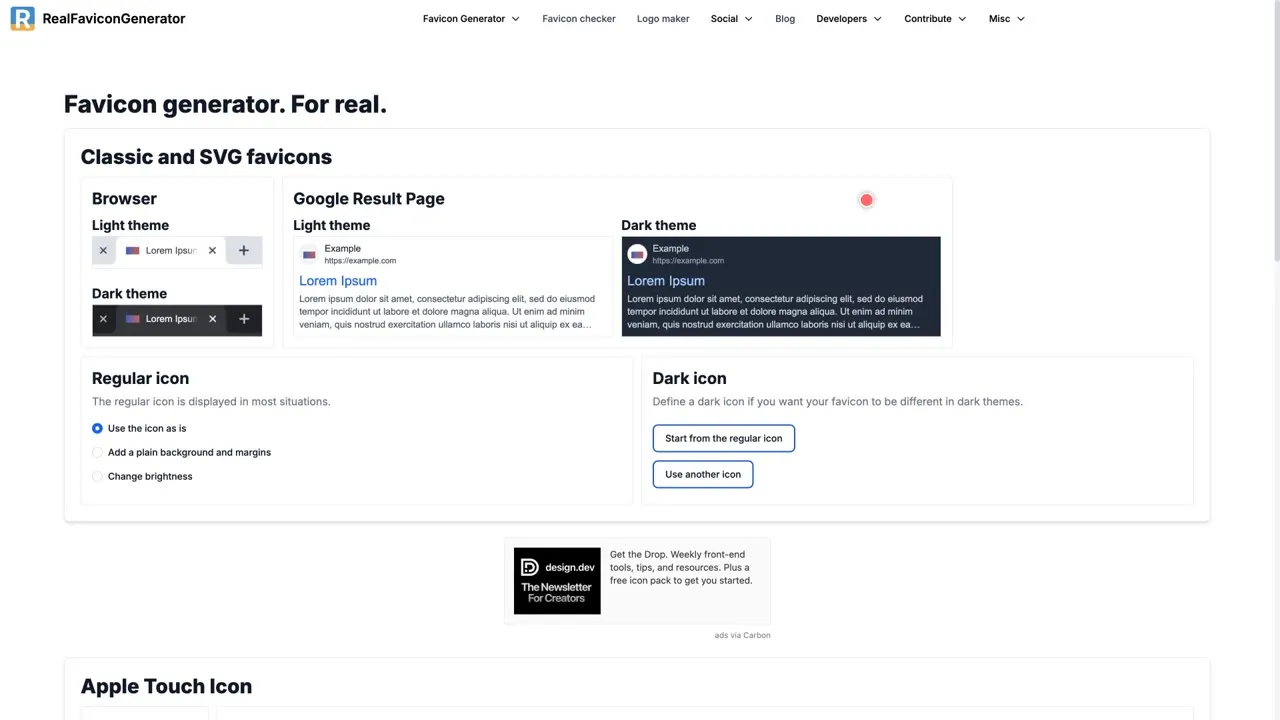
It shows how your icon will look on different platforms before you download, creates the newer SVG favicon, and gives you the HTML to paste into your site. There’s also a favicon checker to test your page afterwards.
Link: realfavicongenerator.net
4 tips before you upload anything
- Compress a copy and keep your original file.
- Check how long the site keeps files, especially for private documents. Among these tools it ranges from 1 hour to 48 hours.
- Use browser-based tools for sensitive files, like Squoosh or Favicon.io.
- Check the free limits before a big batch, like CloudConvert’s 10 conversions a day.
Free limits and privacy rules can change, so check each site before you upload private files.